Free & open source · Android TV · Google TV
Debloat your Android TV or Google TV, without root
Switch off the ads, the telemetry and the preinstalled apps that slow your smart TV down, from a Windows PC or an Android phone. Nothing is uninstalled: every change can be undone.
- No root
- Nothing to install on the TV
- No account, no telemetry
Why TV Slim
Slim the TV down without ever breaking it
Reversible by design
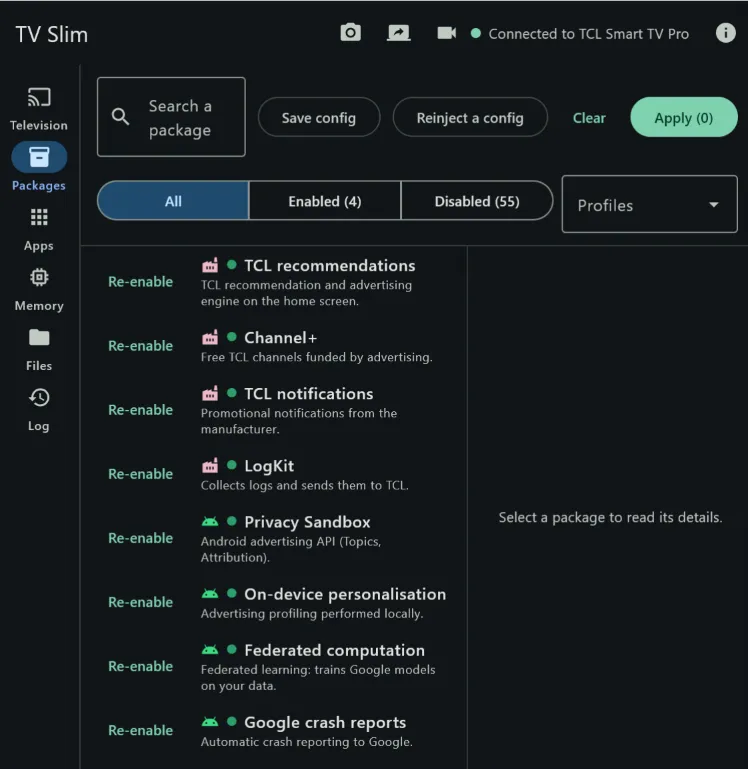
Packages are disabled, never uninstalled. Undo one line of the log, or restore everything in one click.
No root, nothing to install on the TV
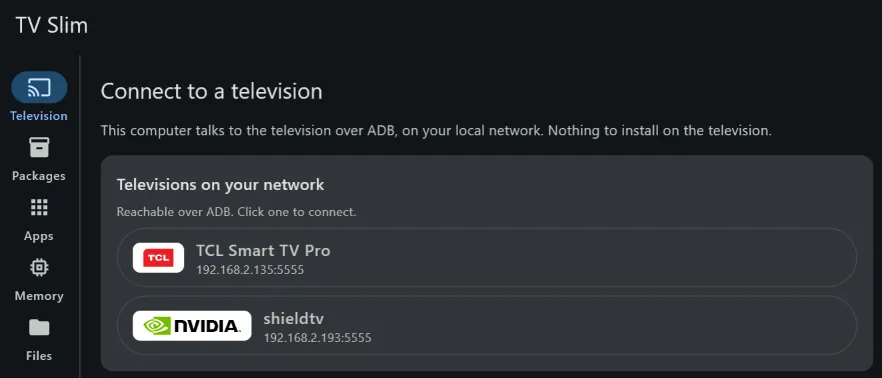
Plain ADB over Wi-Fi or Ethernet. TV Slim finds your television on the network by itself.
It tells you what you are disabling
Every package comes with a description, a risk level and its known side effects, plus ready-made profiles.
Safeguards you cannot click past
Packages that would cause a boot loop or break the remote are refused.
Survives system updates
When an update turns your ads or the Google TV home screen back on, TV Slim notices and puts everything back after one confirmation.
Ad-free home screen
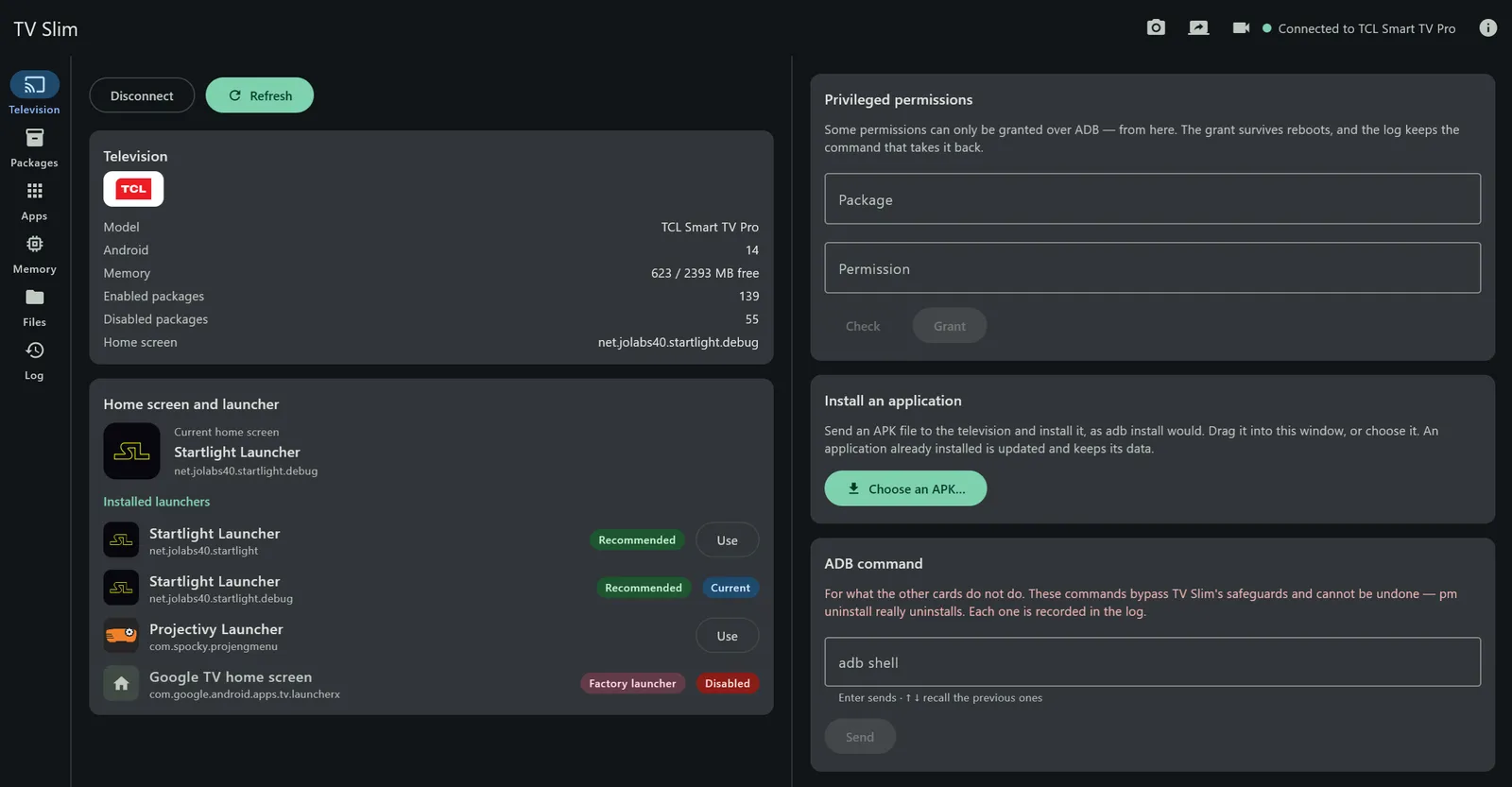
See the launchers installed, switch to Startlight, Projectivy or another one, and keep the factory home screen out of the way.
Everything else ADB can do, with buttons
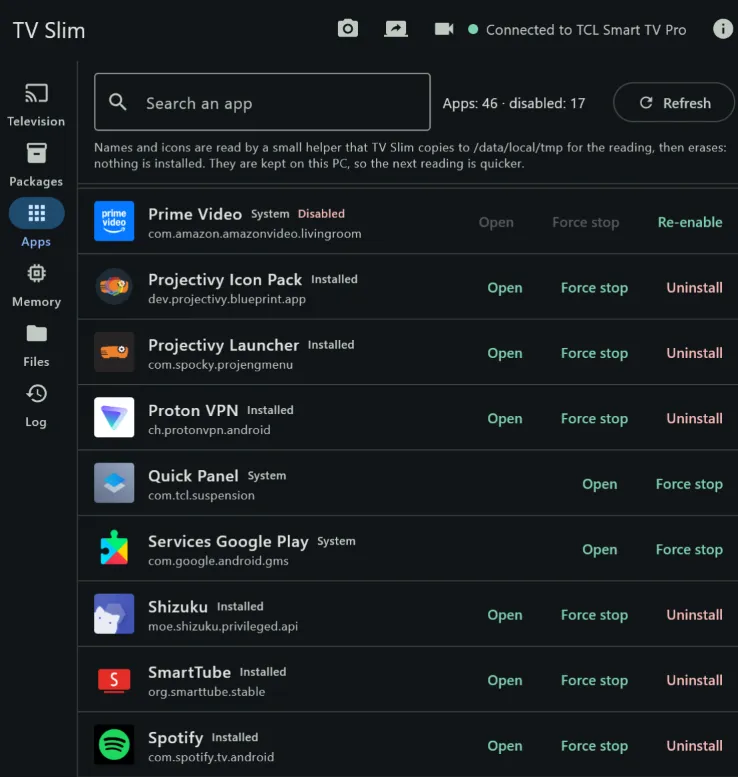
Apps, files in both directions, APK installation, screenshots, screen recording, live mirror, memory and storage.
Private
No account, no telemetry. TV Slim talks to your television and to GitHub for updates, nothing else.
What you will see
Get started
Three steps, once
-
Download TV Slim
For Windows 10 or 11, or for an Android 8+ phone. Nothing else to install.
-
Prepare the television
Turn on the developer options, then network debugging. The guide shows where, depending on the TV.
-
Connect and slim it down
TV Slim finds the TV. Accept the connection with the remote, pick a profile, click Apply.
Package encyclopedia
Know what you switch off before you switch it off
140 packages described, with their risk level and side effects, and 61 packages you must never touch. 9 families: the makers, Google, Android and third-party apps.
Compatibility
Any Android TV or Google TV that offers network debugging
Smart TVs and boxes
TCL, Philips, Sony, Hisense, Sharp, Toshiba, Grundig, Haier, Panasonic… and the NVIDIA Shield TV, Xiaomi Mi Box, Freebox and Google TV streamers. TV Slim recognises the maker and shows its logo.
Tested
On a TCL Smart TV Pro (65C89K, Google TV, Android 14) and an NVIDIA Shield TV.
The catalogue
Google TV and Android TV, TCL, Philips, NVIDIA and Xiaomi; Sony, not tested yet. Unknown packages are listed apart, and “Propose to the catalogue” sends their inventory.
What drives it
A Windows 10 or 11 PC (64-bit), or an Android 8+ phone, on the same network as the TV.
By the same author
An ad-free home screen: Startlight Launcher
Switching off the Google TV home screen needs a replacement. The one TV Slim recommends, by the same author, is Startlight Launcher: a home screen for Android TV and Google TV, with no ads. TV Slim recognises it, suggests it on the Television tab, and helps you make it your home screen.
FAQ
How do I remove the ads from my Android TV or Google TV home screen?
The ads come from the maker’s recommendation service and from the factory home screen. In TV Slim, the “Advertising, telemetry and store demo” profile disables the former — on a TCL, TCL recommendations and Channel+, for instance. For a home screen with no ads at all, install another launcher, choose it on the Television tab, then apply the “Replacing the home screen” profile, which disables the Google TV home screen: TV Slim only allows that once a replacement is in place.
Is debloating my TV safe? Can it brick it?
TV Slim only disables packages, and refuses the ones whose absence would cause a boot loop or break the remote control. Every change is logged with the command that undoes it, and “Restore everything” takes the TV back to where it started. As a last resort, a factory reset of the TV re-enables every package — and “Reinject a config” applies your choices again afterwards.
Do I need to root the TV?
No. TV Slim uses ADB, the debugging bridge every Android TV and Google TV device ships with. Turning on network debugging in the developer options is all it takes.
Does it install anything on the television?
Not unless you ask. The Apps tab copies a small helper to /data/local/tmp to read the names and icons, runs it and erases it straight away. An APK — the optional TV Slim app for the television included — is installed on the TV only when you ask for it.
A system update brought the ads and the Google TV home screen back. What now?
Connect TV Slim again. It compares the TV with its log: if packages you had disabled are running again, or if the factory home screen has taken over, a card says so, and “Put them back” reapplies your changes after one confirmation.
What is the difference with uninstalling packages over ADB?
pm uninstall --user 0, which many guides and phone debloaters use, removes the app for your user; getting it back means finding the right command, and a factory reset may be the only way out of a mistake. TV Slim never does that: it disables, explains each package before you touch it, keeps a log you can undo line by line, and knows the packages that must never be touched on a television.
Is it free?
Yes — free, open source under the Apache 2.0 licence, with no ads, no account and no telemetry.
Free, and it will stay that way
TV Slim is open source under the Apache 2.0 licence, with no ads, no account and no telemetry. If it has been useful to you, you can buy me a coffee on Ko-fi. A star on GitHub helps other people find it, too.